
Cover
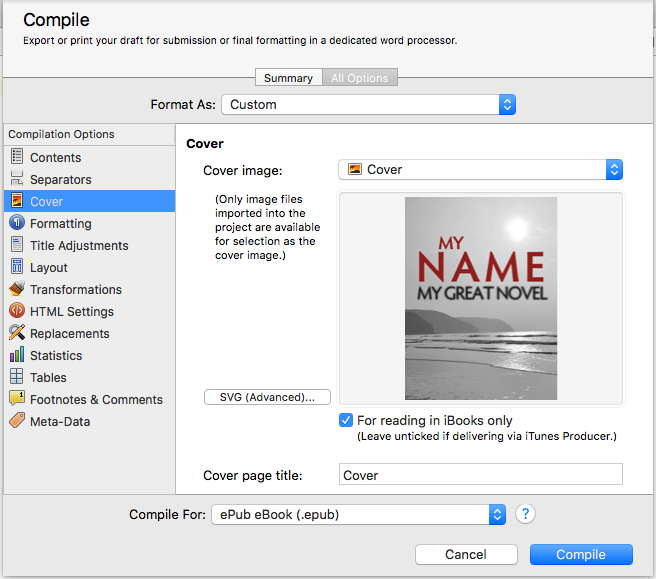
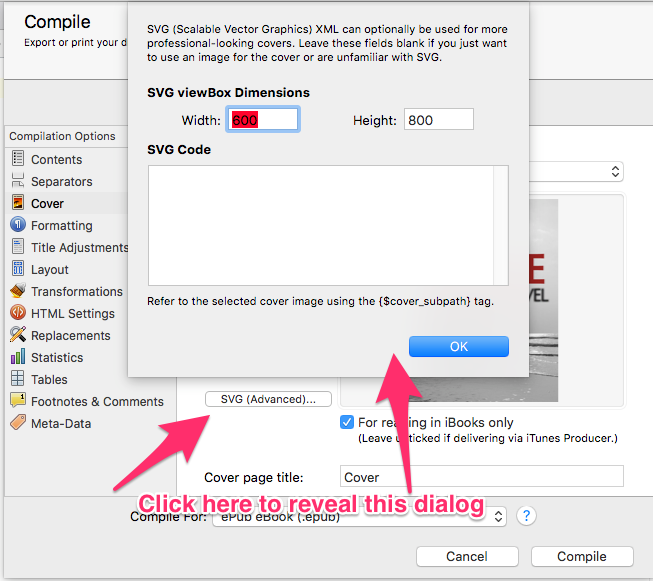
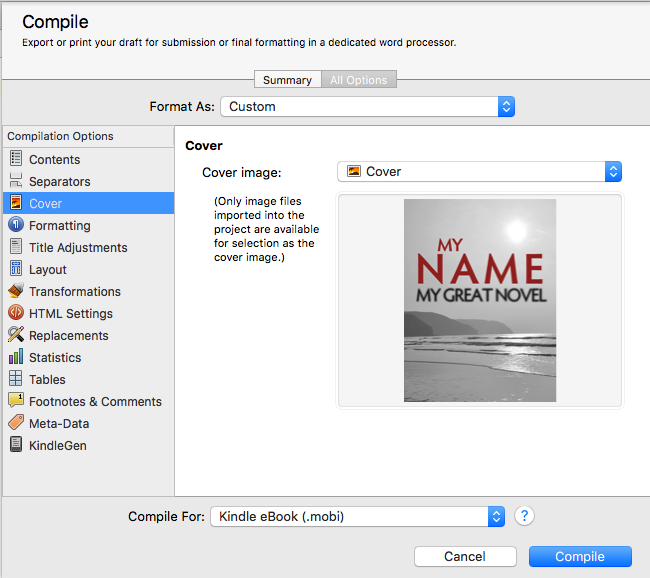
The Cover pane only appears when the compile output is set to .epub or .mobi types. It allows you to set the image for the book cover in those formats, which should be raster images (not vector). Both PNG and JPEG formats are raster images, and will both work for this pane. Scrivener recommends using JPEG files since some e-book readers don’t know how to handle PNG images.
Meta-Data
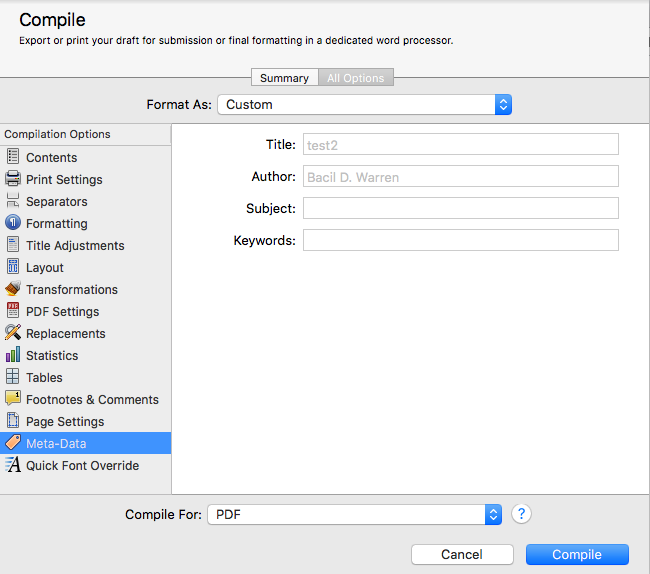
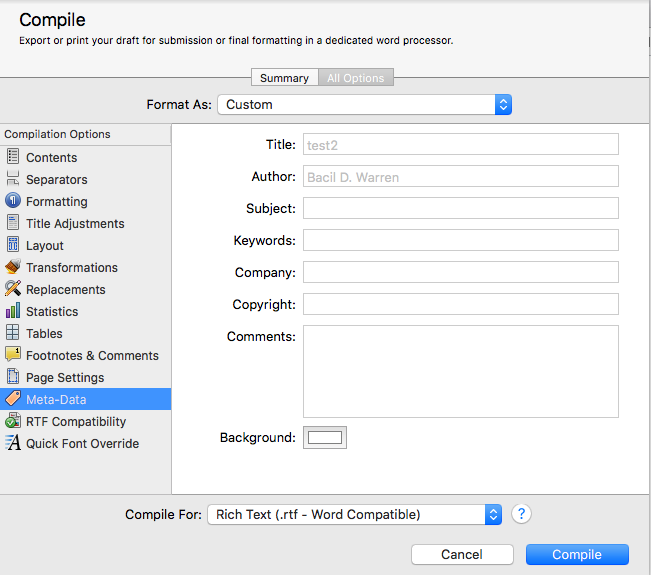 For the word processing output types (.rtf, .rtfd, .doc, .docx, and .odt) as well as the Web output formats (.html and web archive), all four of the PDF variables are present, as well as Company, Copyright, and Comments, and a background color setting. For .html and webarchive formats, the “Title” variable will become the page title (i.e., the value for <title>Title Here</title>). The Keywords field here acts just like the one for PDF outputs, and the Comments is a free-form text box just as the others are free-form text fields.
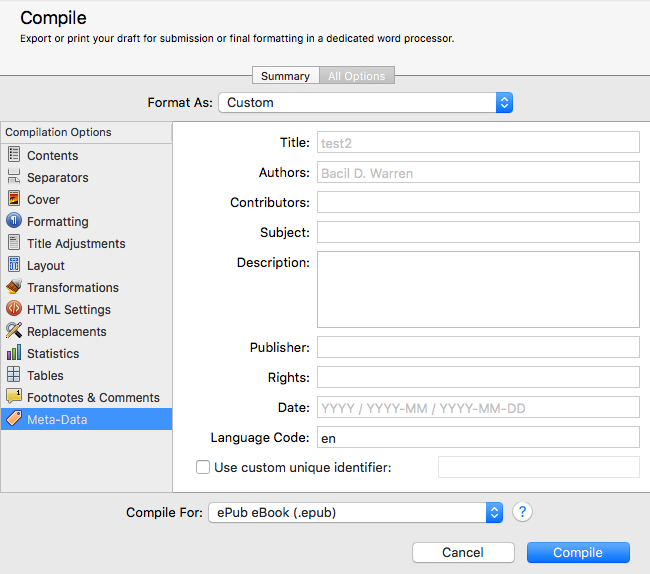 For the .epub and .mobi file types there are different fields, but most of them act like the ones from the first two. There are two major exceptions: the “Authors” field (note, changed from “Author” in the other two) and the new “Contributors” field permit semi-colon-separated values rather than free-form text; if there are multiple authors or contributors for the document, enter each name separated by a semi-colon. Besides Title, Authors, and Subject (no “Keywords” in this pane), this pane has the Contributors, Description (free-form text box), Publisher, Rights, Date, Language Code, and a checkbox to enable the use of a custom unique identifier. Of these, the one to be most concerned about is the Language Code, which should be the official ISO two-character code for the language of the document. If your publisher gave you a unique identifier, click the checkbox “on” and put it in that text field.
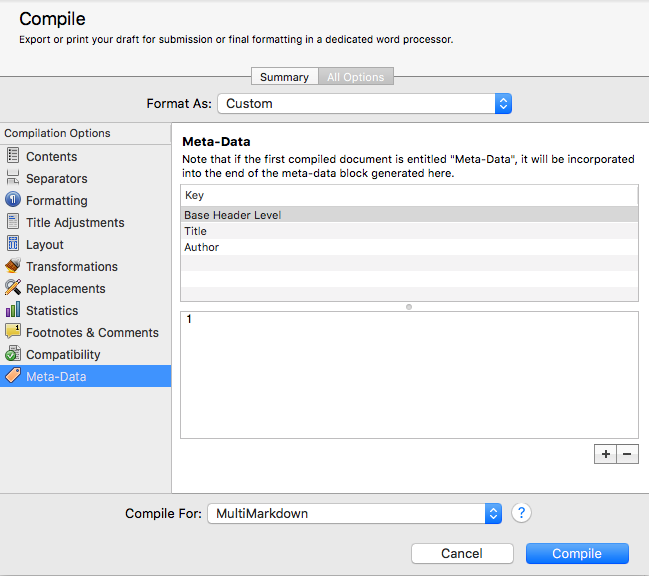 With MultiMarkdown (any output type) and .fountain (Title Page Meta-Data) output types the interface is different, using a table to add or subtract arbitrary variable names and a text box below to enter the values. There are no required Meta-Data entries for MultiMarkdown, but Scrivener does create a few by default in new projects. To add a new variable, click the “+” button in the lower right, and to delete one select it in the table at the top and click the “-“ button instead. To add a value to a variable, select it in the table and then click in the text box at the bottom and type in the value. Scrivener warns that empty lines in this text box will cause the Meta-Data block to end prematurely because it inserts these values verbatim and the MultiMarkdown format sees an empty line as the signal to stop processing Meta-Data. Be careful!
RTF Compatibility
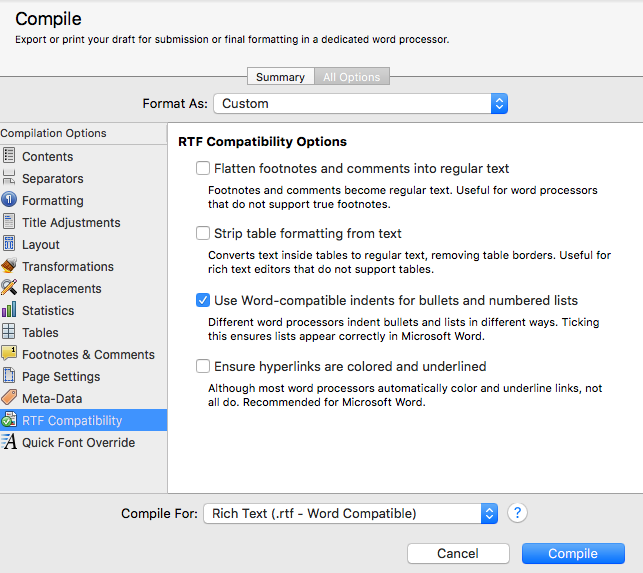 The setting for this pane when using .rtf or MultiMarkdown RTF output formats has four settings. The main thing to keep in mind about this is to only change the default settings if your output looks bad. By and large, the RTF output settings are pretty good and produce fine RTF files. If, however, your editor of choice is choking on something, invert the setting for whichever part with which it’s having problems. The first setting will essentially convert footnotes and comments into text endnotes, and converts their marker into the standard set (typically *, †, ‡, §, ‖, ¶, etc.). The next setting tells the output compiler to essentially turn any tables into regular text, which you would need if your particular RTF editor doesn’t handle tables. If you are using Word as your editor but are exporting in straight RTF (that is, not using the .doc or .docx output formats) or MultiMarkdown RTF, you can tell the compiler to use Word’s list making tools. Since Word handles these differently than do other word processors, you will definitely want to check this if you have bulleted or numbered lists in your output document. Finally, there is a checkbox for underlining and coloring URLs/hyperlinks. This box is unchecked by default since most editors do this on their own. Word, however, does not, and will need this box checked if you intend to open your compiled RTF file in Word and have hyperlinks in the output document.
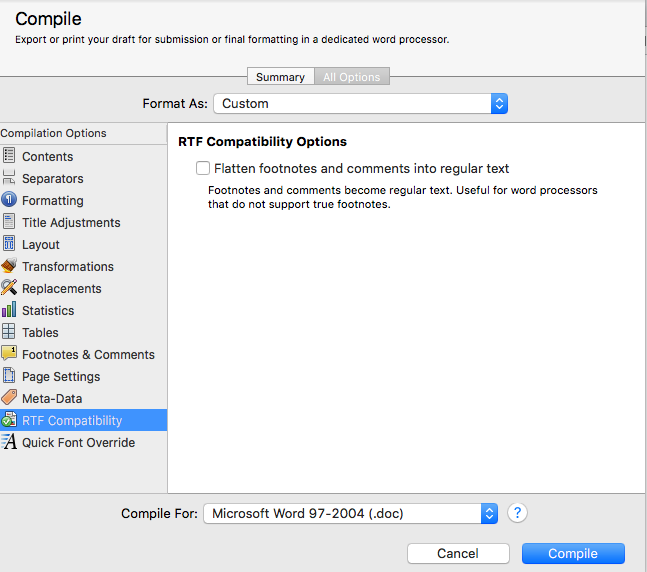 The RTF Compatibility pane when using .doc or .docx files is much simpler, and has only the setting to flatten footnotes. For both RTF and DOC output, checking this box will not override the setting to hide comments, but will only determine how they are displayed if they are included.
Kindle Gen
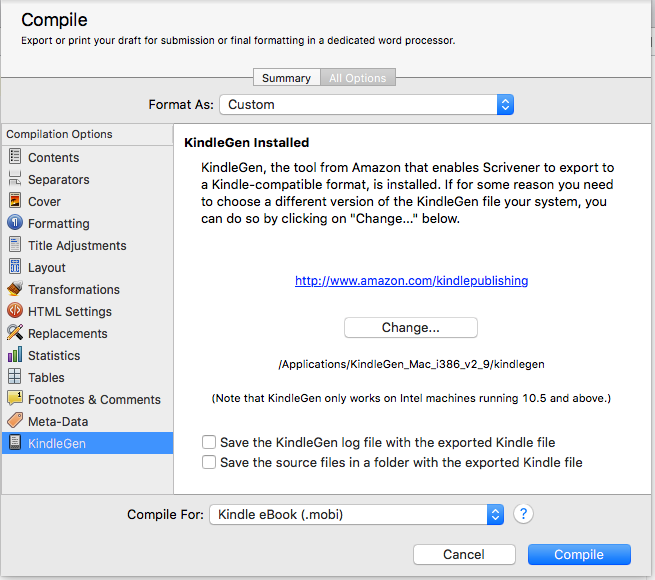
The Kindle Gen pane only appears for .mobi output formats and is where you specify what application the compiler should use to generate the .mobi file. Before you can output a .mobi file you must set this location. There are also two checkboxes at the bottom of the pane. The first enables you to tell the compiler to create a log file of the Kindle Gen output. This is unchecked by default and is really only needed if you are running into problems creating a valid .mobi file from Scrivener. The second checkbox (also unchecked by default) will output both the generated source files that Scrivener feeds to the Kindle Gen application as well as the .mobi file output itself. If you need or want to make changes to these files (perhaps you have a very specific layout need or something, I’ve never run across anything that would require me to modify the output files in this way), you can do so before manually flinging them at Kindle Gen yourself if you enable this checkbox first.